
AI product photo editing / Step Image Edit 2
AI product photo editor for faster campaign assets
Turn a straightforward product shot into cleaner ecommerce and campaign visuals. Keep product identity stable while you test backgrounds, surfaces, light, and framing.
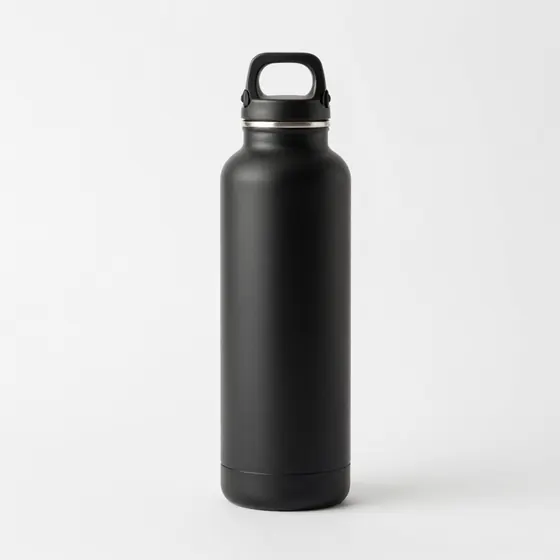
01 / Use cases
Use AI product photo editing for focused visual changes
Preserve what matters
Preserve shape, packaging, label placement, and key product details across each visual variation.
Direct the edit with language
Build studio, lifestyle, seasonal, or campaign scenes without reshooting every background concept.
Prepare practical outputs
Prepare listing images, ads, launch graphics, and social crops from the same product source.
02 / Workflow
How to use AI product photo editing
A clear source image and a specific instruction give Step Image Edit 2 the context it needs for a controlled result.
- 01
Add a source image
Choose a clear image with the main subject visible. Start without an image only when you want to generate a new scene from text.
- 02
Describe the exact change
State what should change, what must stay intact, and the intended crop or format. Concrete constraints reduce unwanted edits.
- 03
Review, refine, and export
Check subject identity, text, edges, lighting, and composition. Tighten the prompt and generate again before downloading the final image.
03 / FAQ
Questions about AI product photo editing
What is AI product photo editing?
AI product photo editing is a browser-based Step Image Edit 2 workflow that uses a prompt and, when needed, a source image to create a targeted visual change.
Can I try AI product photo editing for free?
You can open the editor and start a prompt for free. Available generations, history, and higher-volume use depend on the current account and plan limits.
How do I get a more accurate result with AI product photo editing?
Use a clean source image and write one focused instruction. Name the subject to preserve, the exact change, the lighting or style, and the final aspect ratio.
04 / More tools
Continue with another image workflow
Start AI product photo editing
Write a precise edit instruction, open the workspace, and add your source image when the task needs one.