
image-to-image AI / Step Image Edit 2
Image-to-image AI for controlled transformations
Use an existing image as visual context, then guide the transformation with text. Step Image Edit 2 can retain the important structure while changing the scene around it.
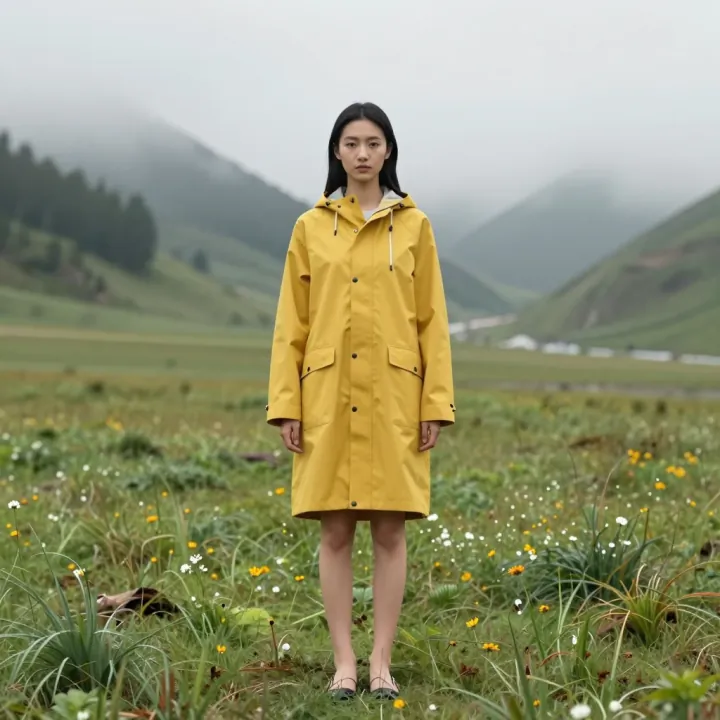
01 / Use cases
Use image-to-image AI for focused visual changes
Preserve what matters
Carry a recognizable subject, pose, or layout into a new visual direction instead of starting from zero.
Direct the edit with language
Explore photographic, editorial, illustrative, or campaign styles while describing the intended mood.
Prepare practical outputs
Reframe a source for new channels and formats while keeping the visual idea consistent.
02 / Workflow
How to use image-to-image AI
A clear source image and a specific instruction give Step Image Edit 2 the context it needs for a controlled result.
- 01
Add a source image
Choose a clear image with the main subject visible. Start without an image only when you want to generate a new scene from text.
- 02
Describe the exact change
State what should change, what must stay intact, and the intended crop or format. Concrete constraints reduce unwanted edits.
- 03
Review, refine, and export
Check subject identity, text, edges, lighting, and composition. Tighten the prompt and generate again before downloading the final image.
03 / FAQ
Questions about image-to-image AI
What is image-to-image AI?
image-to-image AI is a browser-based Step Image Edit 2 workflow that uses a prompt and, when needed, a source image to create a targeted visual change.
Can I try image-to-image AI for free?
You can open the editor and start a prompt for free. Available generations, history, and higher-volume use depend on the current account and plan limits.
How do I get a more accurate result with image-to-image AI?
Use a clean source image and write one focused instruction. Name the subject to preserve, the exact change, the lighting or style, and the final aspect ratio.
04 / More tools
Continue with another image workflow
Start image-to-image AI
Write a precise edit instruction, open the workspace, and add your source image when the task needs one.